
🛠️ How to Service, Maintain & Calibrate the Insta360 Pro 2 Camera: Your Pre-Flight Checklist
The Insta360 Pro 2 is a powerhouse—a professional tool for creating flawless virtual tours, immersive documentaries, and high-end 360° content. But like any precision instrument, it demands respect and meticulous preparation
INSTA 360 PRO2 CAMERA USES
🛠️ How to Service, Maintain & Calibrate the Insta360 Pro 2 Camera: Your Pre-Flight Checklist
The Insta360 Pro 2 is a powerhouse—a professional tool for creating flawless virtual tours, immersive documentaries, and high-end 360° content. But like any precision instrument, it demands respect and meticulous preparation.
To guarantee that perfect stitch and long-term performance, proper servicing, maintenance, and calibration aren't optional; they are your insurance against a ruined shoot.
❤️ The Human Perspective: Why Maintenance is Your Best Editor
As a content creator, your greatest frustration is a technical issue that destroys a perfect shot—a visible stitch line, a dropped frame due to overheating, or footage that wobbles because the gyro failed.
Every time you take five minutes to clean a lens or run a calibration, you are essentially saving yourself hours in post-production. Maintenance is prevention. It ensures that when the moment is right—the client is ready, the light is perfect, and the action is unfolding—your camera is a reliable, invisible partner.
1. 🧼 Regular Maintenance Checklist: Keep It Spotless
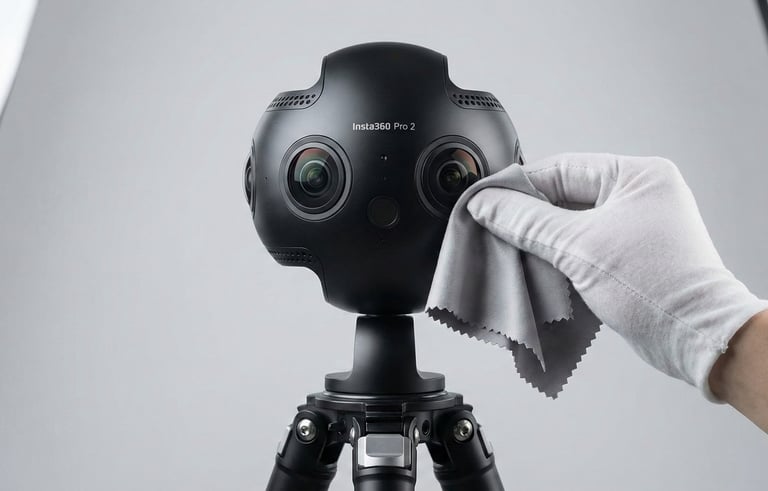
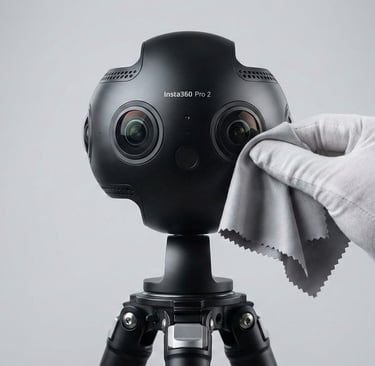
A. Clean the Lenses Properly (Crucial!)
The Pro 2 has six fisheye lenses; a smudge on one ruins the entire 360° stitch.
Do this: Use a microfiber cloth designed for optics. Apply lens cleaning solution sparingly to the cloth (never directly on the lens). Use a soft air blower to clear dust first.
Avoid: Using tissues, excessive liquid, or touching the lenses with your fingers.
B. Check the Fan & Cooling System
High-resolution 360° video generates significant heat. Proper cooling prevents overheating, which can lead to frame drops and file corruption.
Steps: Ensure air vents are dust-free. Use compressed air gently to clean the vents.
Tip: The camera's recommended working environment temperature range is 1$0-40^\circ\text{C}$ (Source: Insta360 User Manual).2 Avoid shooting in direct, sustained sunlight.
C. Inspect the Battery & Power System
The Insta360 Pro 2 uses a removable battery and an optional external power source (like the Farsight transmitter).3
Maintenance Tips: Charge batteries fully before a shoot. Store batteries at 40–60% when not in use for longevity.
D. Memory Cards & Storage
The Pro 2 requires specific high-speed cards (V30 or better) for stable recording.
Checklist: Always format memory cards inside the camera before shooting to ensure the camera’s internal file structure is correct. Slow or corrupted cards are a leading cause of recording errors.
E. Firmware Updates
New firmware improves stability, stitching, and image quality.
Steps: Visit the Insta360 official website to download the latest firmware. Install it via the SD card as per instructions. Always verify the battery level is above 30% before updating.4
2. ⚙️ How to Calibrate Insta360 Pro 2 Before Every Shoot
Calibration is crucial for a perfect stitch, accurate stabilization, and a level horizon.
A. IMU (Gyroscope) Calibration
This ensures that the camera’s FlowState Stabilization works perfectly.
Steps: Place the camera on a perfectly flat, level surface.5 Go to Settings → Calibration → IMU Calibration. Do not touch or move the camera during the process.
Tip: Always perform IMU calibration after long transport or rough handling.
B. Optical Lens Calibration (Stitching)
This process adjusts the stitching parameters to minimize visible lines.6
Steps: Point the camera toward a highly textured surface (like a brick wall or detailed wallpaper). Go to Camera Settings → Calibration → Optical Calibration (sometimes labeled "Stitching Calibration").7
Note: The camera needs texture to align the lenses; avoid calibrating against plain white walls or in very low light.8
C. Horizontal Level Recenter
Ensures your horizon is straight and level.
Steps: Keep the camera stable. Use the Insta360 Pro 2 control app or web UI and select the Horizontal Calibration option.
❓ Frequently Asked Questions (FAQ)
Q: Can I use any MicroSD card?
A: No. The Pro 2 generates a very high data rate. You must use cards rated V30 or faster (e.g., U3) to avoid dropped frames and file corruption.
Q: My stitching is poor even after calibration. What else can I do?
A: Try a different environment with more detail/texture for the Optical Calibration. If the issue persists, you may need to use Insta360 Stitcher software to manually fine-tune the stitch templates.9 If the problem is persistent, the camera may require professional lens alignment.
Q: My fan stopped working. Is it safe to shoot?
A: No. If the fan is not working and its setting is not set to "Off," there is likely a hardware malfunction (Source: Insta360 User Manual). Continuous shooting will cause the camera to overheat and shut down, which can damage internal components. Contact professional service immediately.
🎥 Watch: Mastering Your Professional 360° Camera
For a deeper dive into the technical workflow, watching a professional guide can be invaluable:
YouTube Video Recommendation: "Insta360 Pro 2 Complete Tutorial and Guide"
🤝 Professional Support for Your Pro 2
Don't let technical issues stop your production. Whether you need a perfectly maintained unit for a shoot or technical guidance, we are here to support your immersive projects.
360 VR Photography provides specialized support for professional users:
Insta360 Pro 2 Rental Service: Access to meticulously maintained, fully calibrated units.
On-Site Calibration & Setup: Technical assistance to ensure flawless performance for complex shoots.
360° VR Shooting & Editing Services: Comprehensive content creation for high-end projects.
Contact Viral Gala for Expert 360° Guidance:
📞 +91 99203 22366

Experience
Engaging virtual tours for real estate and events.
Innovative
Immersive
info@360vrphotography.in
+91 9920322366